# Email signup
***
### 1. Our guide to set up an Email signup section:
{% hint style="info" %}
**Steps:**
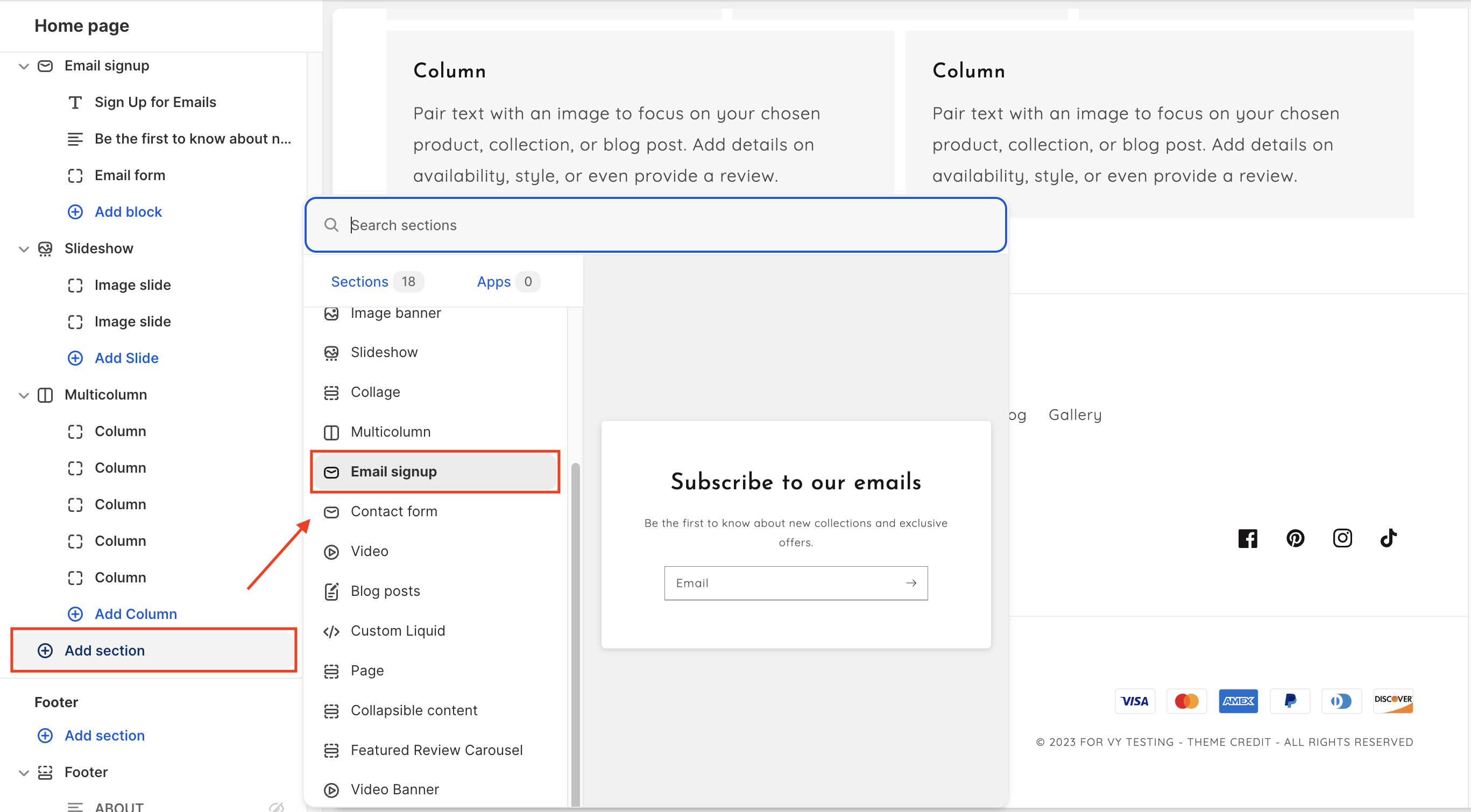
* In the theme editor, click **Add section.**
* Locate **Email signup.**
* Click **Save.**
{% endhint %}
### **2. Section blocks:**
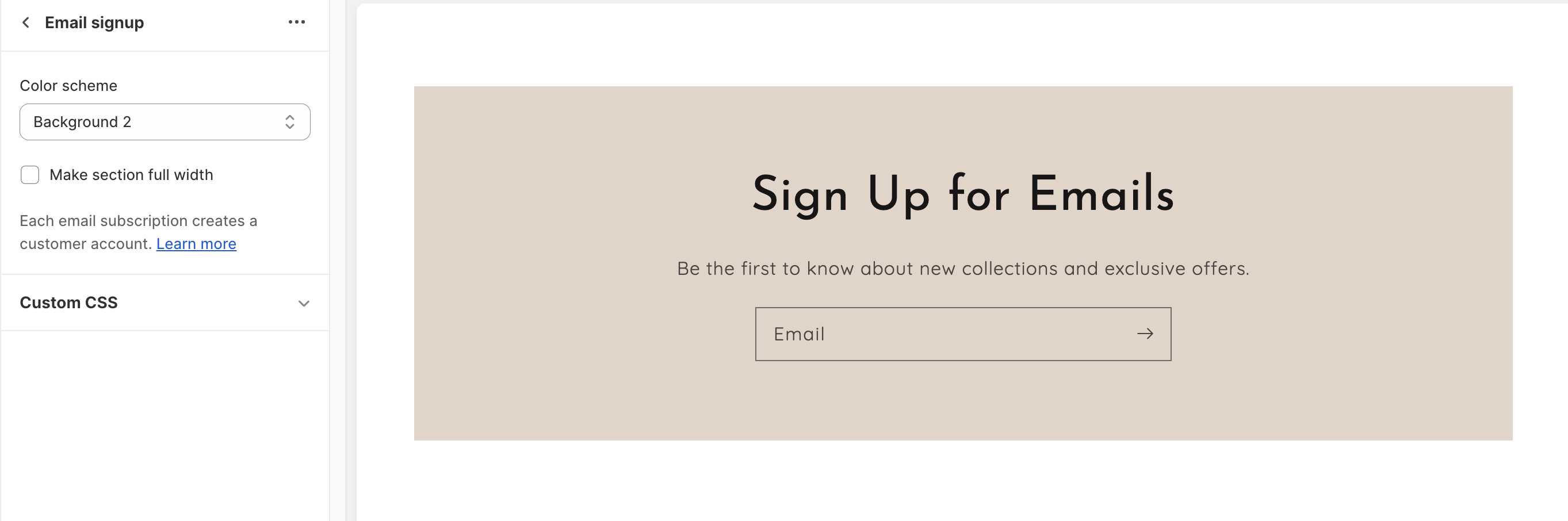
* Use the provided text fields to add a suitable **Heading**/**Subheading**. Leave any of them blank if you do not want to display them.
* Activate the "Email form" field so visitors can become subscribers by entering their emails.
### **3. Email signup section settings:**
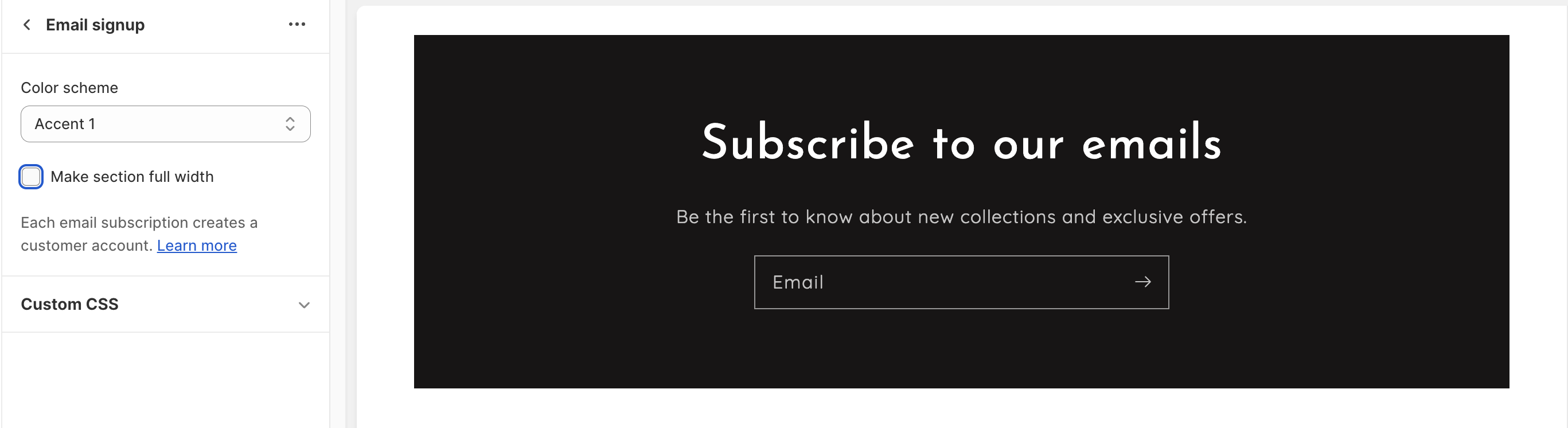
* Click on the **Email signup** section to open the section settings.
* Change the container type (full width, default) and color background.
### 4. Where do submission of Email signup forms go?
[Learn More »](/articles/faqs/where-do-submission-of-email-signup-forms-go.md)
---
# Agent Instructions: Querying This Documentation
If you need additional information that is not directly available in this page, you can query the documentation dynamically by asking a question.
Perform an HTTP GET request on the current page URL with the `ask` query parameter:
```
GET https://help.inspiredtheme.com/articles/sections/sections-available-in-inspiredtheme/email-signup.md?ask=
```
The question should be specific, self-contained, and written in natural language.
The response will contain a direct answer to the question and relevant excerpts and sources from the documentation.
Use this mechanism when the answer is not explicitly present in the current page, you need clarification or additional context, or you want to retrieve related documentation sections.