> For the complete documentation index, see [llms.txt](https://help.inspiredtheme.com/articles/llms.txt). Markdown versions of documentation pages are available by appending `.md` to page URLs; this page is available as [Markdown](https://help.inspiredtheme.com/articles/sections/sections-available-in-inspiredtheme/image-banner.md).
# Image banner
The Image banner section provides a flexible and stylish option for combining text, images, and links. Use the section blocks and settings to showcase media and messaging.
***
**The Image banner** section is a perfect opener. A lightweight section that can present a full-width image.
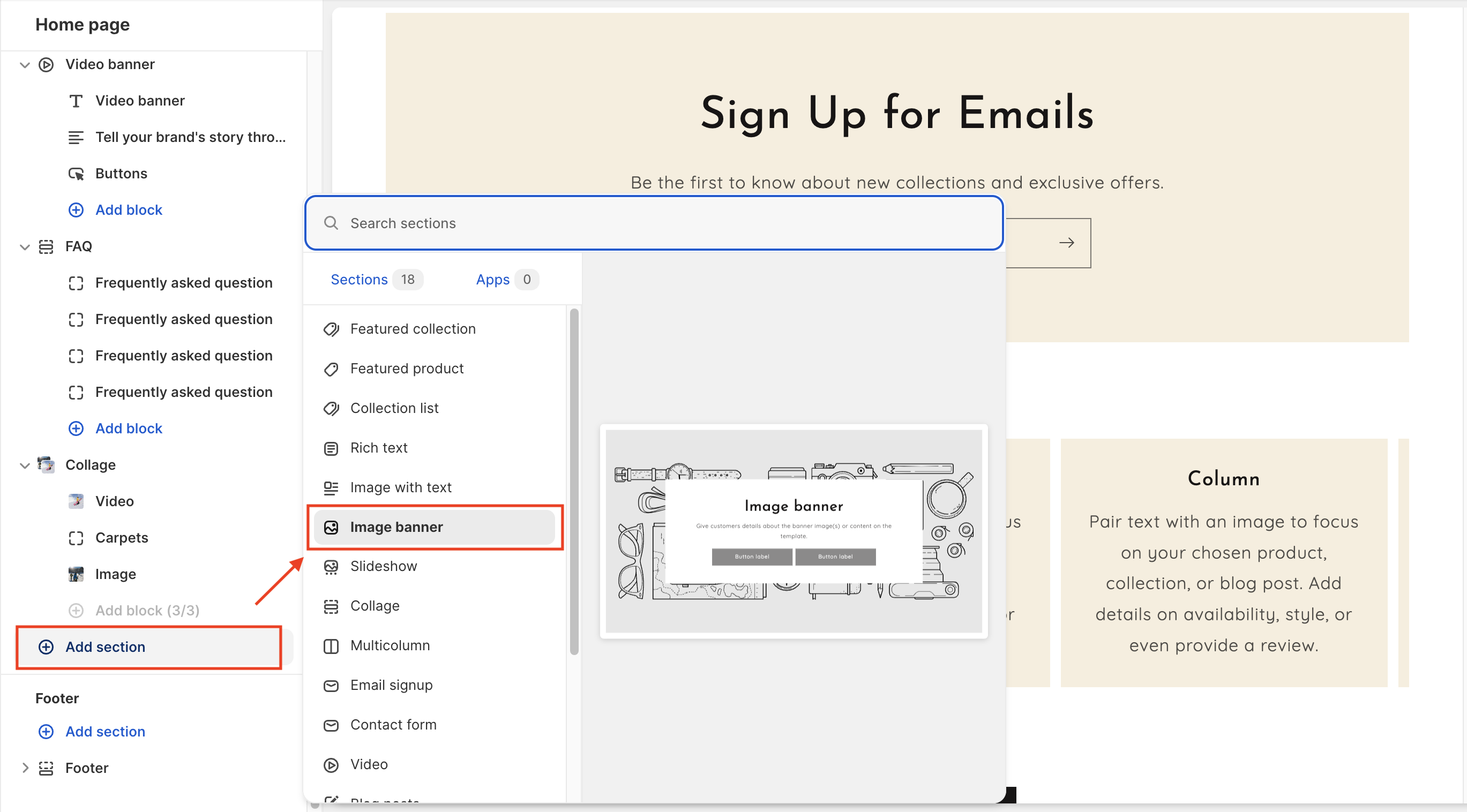
### 1. Our guide to set up an Image banner section:
{% hint style="info" %}
**Steps:**
* In the theme editor, click **Add section.**
* Locate **Image banner.**
* Click **Save.**
{% endhint %}
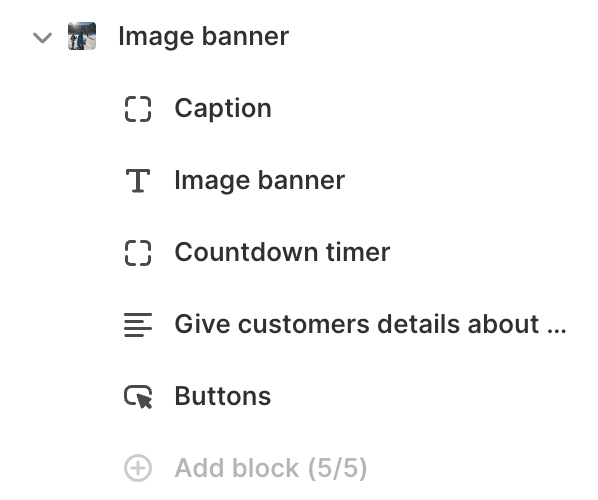
### **2. Section blocks:**
* **Heading:** Use the provided text fields to add a suitable heading/description. Leave any of them blank if you do not want to display them.
* **Text & Caption:** Click the **Text/Caption block** to customize its content. Add the content to the Description field.
* **Countdown timer:** display a live countdown for an upcoming event or sale. Use this block to create a sense of urgency or anticipation for your customers.
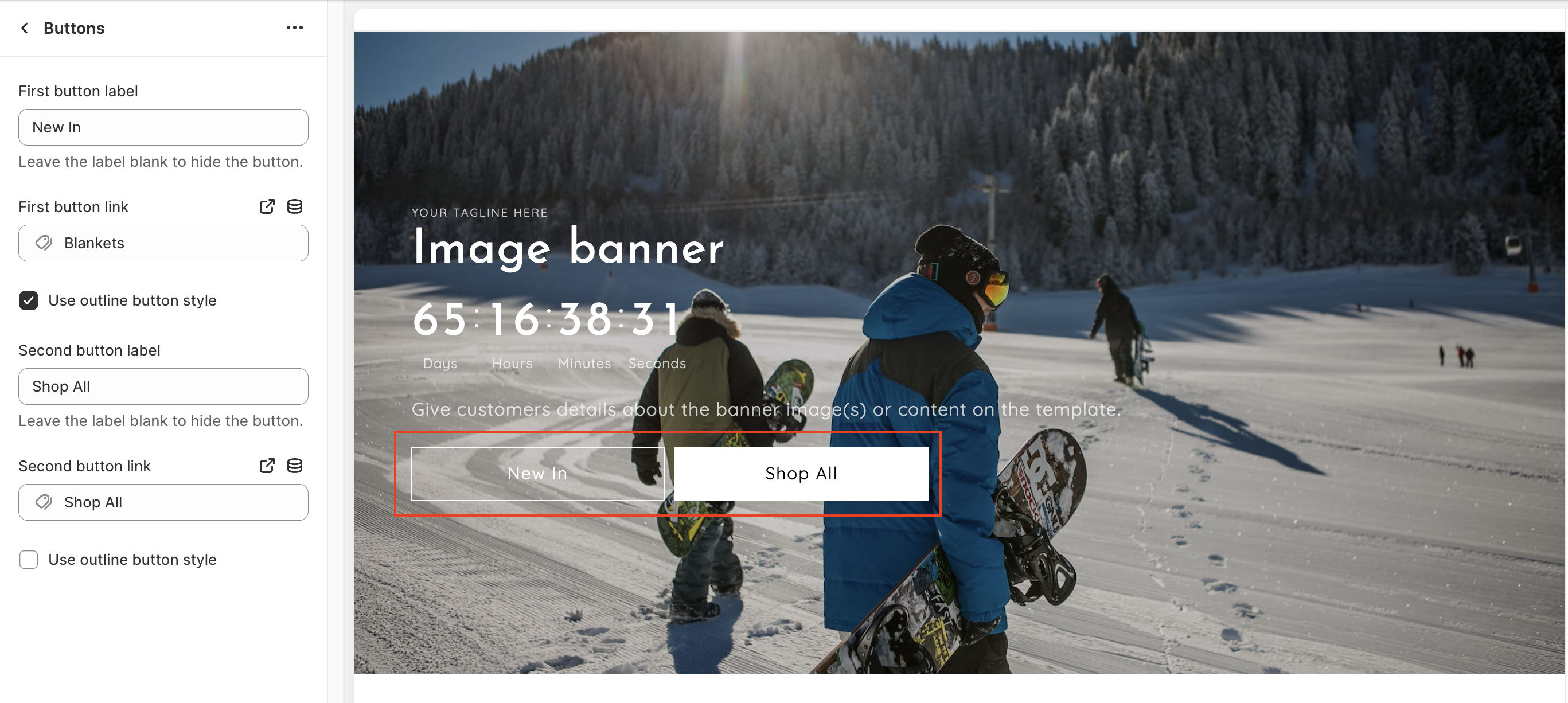
* **Buttons:** Click the **Button** block to customize its content. Connect a page or other URL with the Link field.
### **3. Image banner section settings:**
* Click on the **Image banner** section to open the section settings.
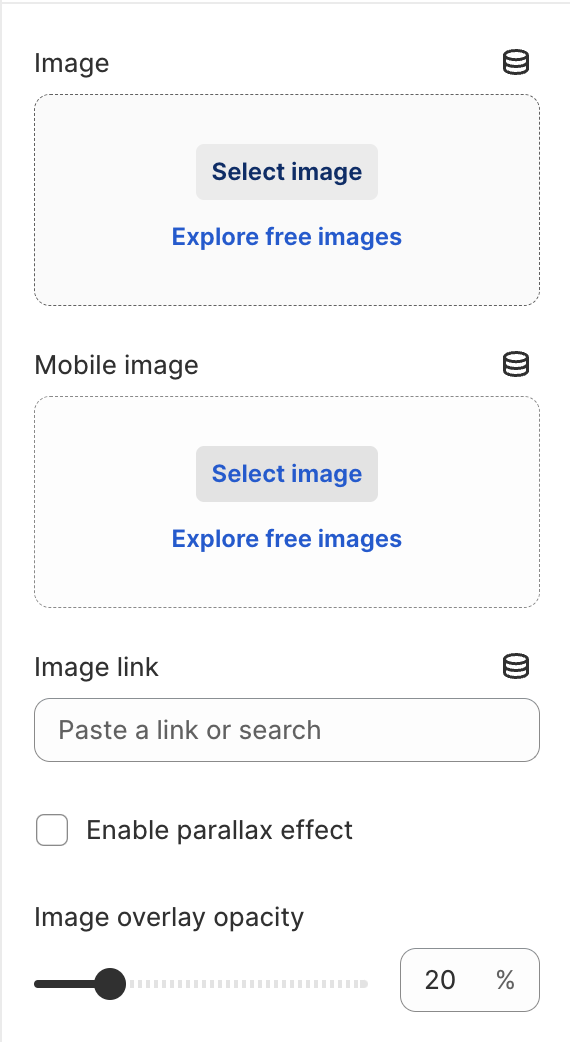
* **Image**: Select or upload one image. There are no required image dimensions but we recommend an image that is landscape (wider than it is tall). We recommend uploading an image with a minimum width of 2048px for optimal quality.
You can add a **link** to redirect customers to your desired page. **Enable parallax effect** and change **Image** **overlay opacity** if needed.
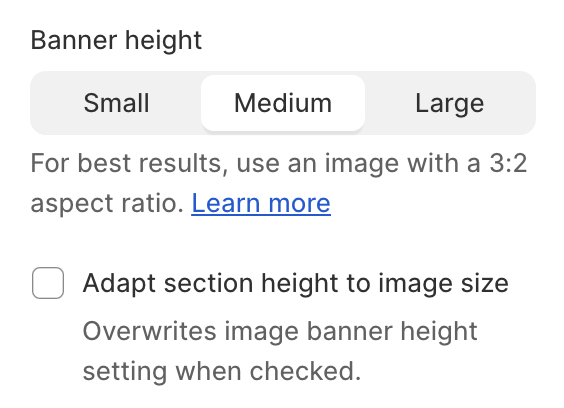
* **Banner height**: Section height options include: **Small**, **Medium**, and **Large**. Choose **Adapt section height to image size** to display the original image shape.
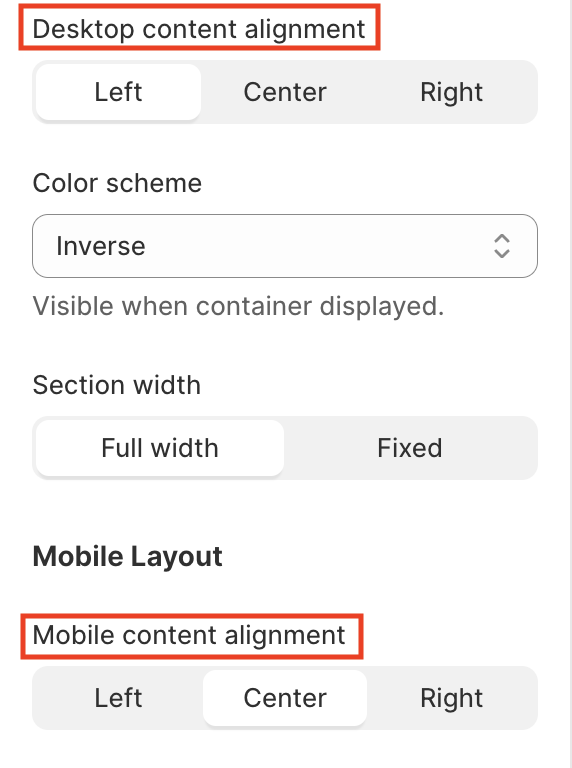
* Align the content to the Left, Center, or Right by selecting one of these options from the **Desktop/Mobile content alignment** setting **to build the best look for different devices.**
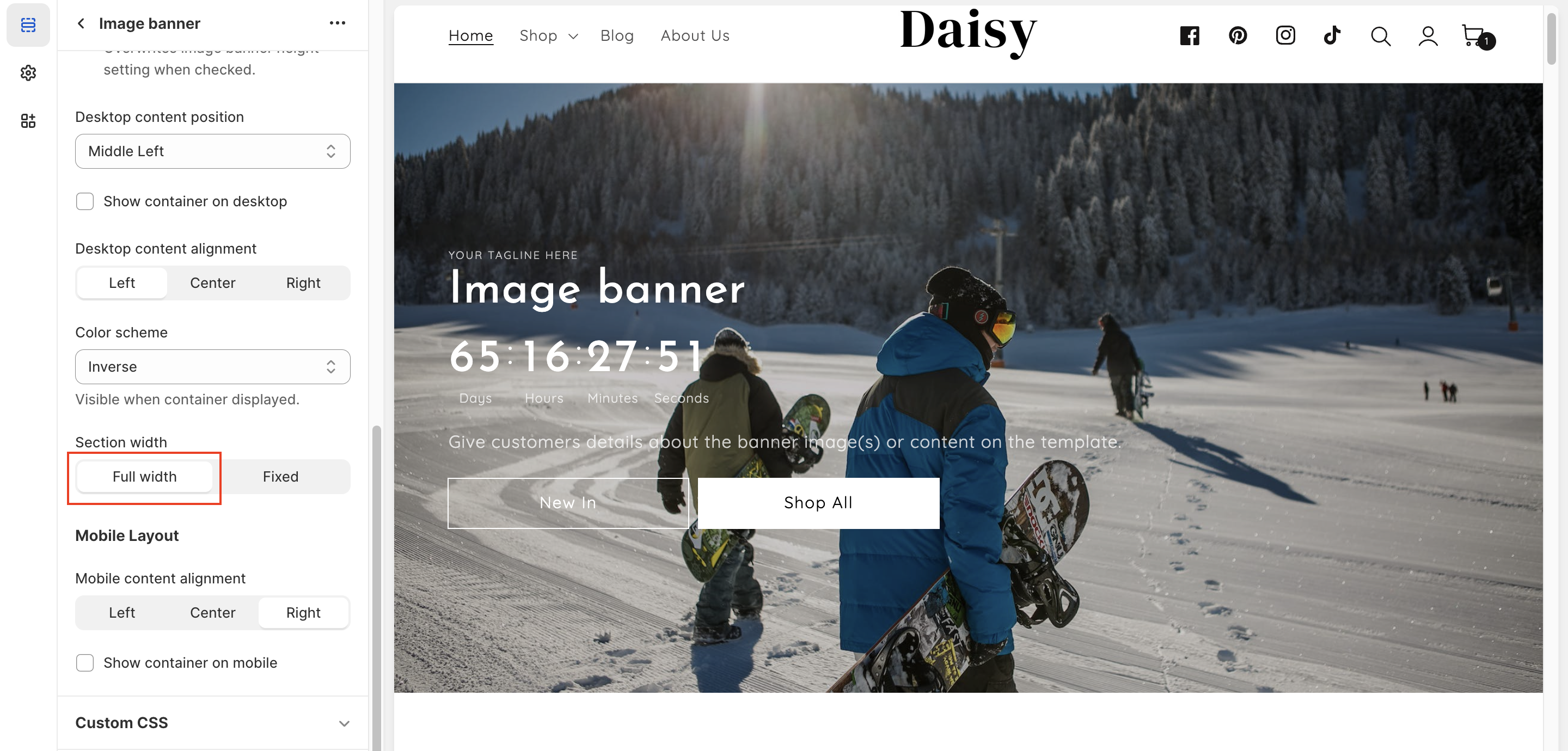
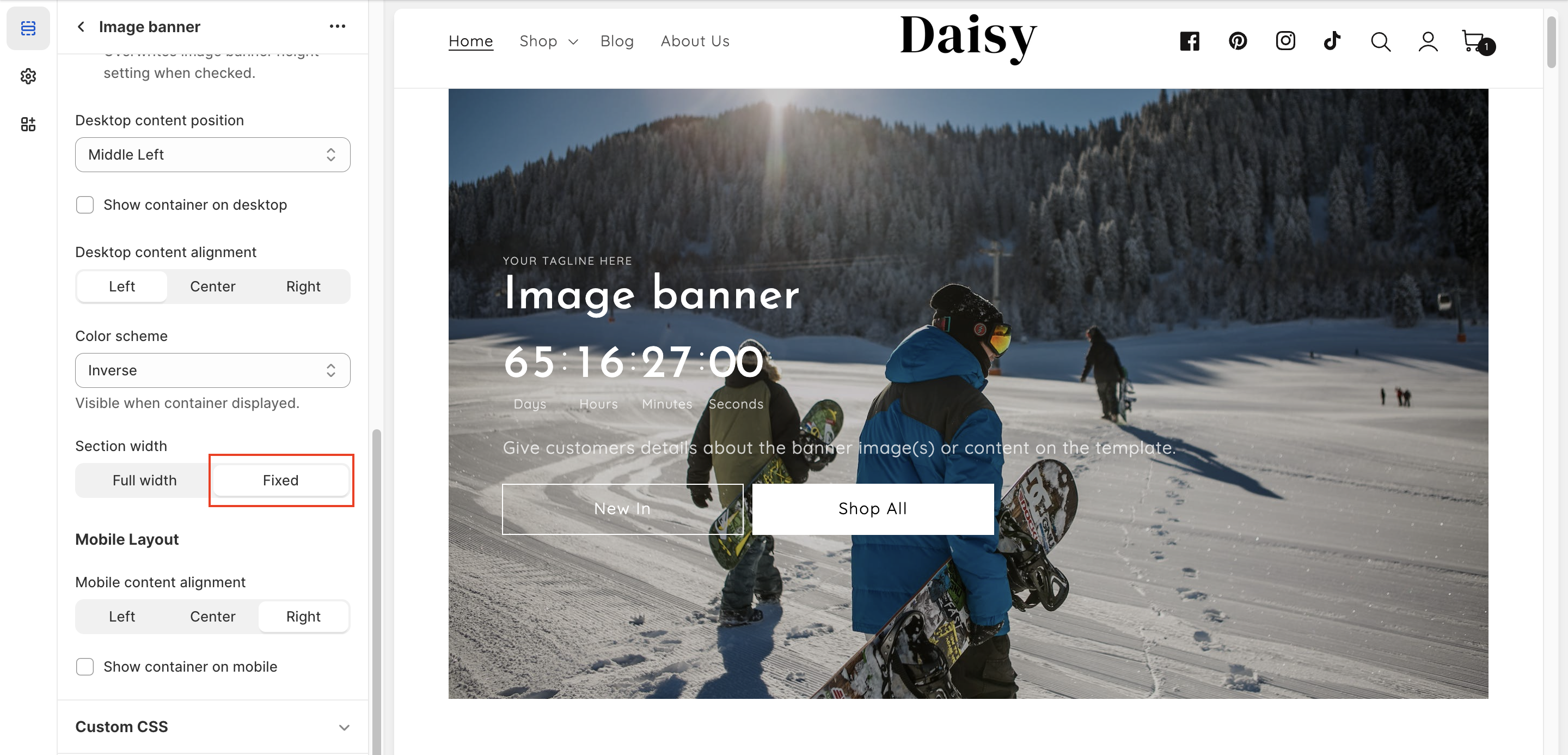
* Use the **Section width option** to control the maximum width of the **Image banner section** to **Full width** or **Fixed**.
{% tabs %}
{% tab title="Full width" %}
{% endtab %}
{% tab title="Fixed" %}
{% endtab %}
{% endtabs %}
---
# Agent Instructions
This documentation is published with GitBook. GitBook is the documentation platform designed so that both humans and AI agents can read, navigate, and reason over technical content effectively. Learn more at gitbook.com.
## Querying This Documentation
If you need additional information that is not directly available in this page, you can query the documentation dynamically by asking a question.
Perform an HTTP GET request on the current page URL with the `ask` query parameter, and the optional `goal` query parameter:
```
GET https://help.inspiredtheme.com/articles/sections/sections-available-in-inspiredtheme/image-banner.md?ask=&goal=
```
`ask` is the immediate question: it should be specific, self-contained, and written in natural language.
`goal` is optional and describes the broader end goal you are ultimately trying to accomplish on behalf of the user. GitBook uses it to tailor the answer towards what is most useful for that goal.
The response will contain a direct answer to the question and relevant excerpts and sources from the documentation.
Use this mechanism when the answer is not explicitly present in the current page, you need clarification or additional context, or you want to retrieve related documentation sections.