> For the complete documentation index, see [llms.txt](https://help.inspiredtheme.com/articles/llms.txt). Markdown versions of documentation pages are available by appending `.md` to page URLs; this page is available as [Markdown](https://help.inspiredtheme.com/articles/sections/sections-available-in-inspiredtheme/multicolumn.md).
# Multicolumn
The Multicolumn section displays a row of text blocks with optional images, great for highlighting your values, how your company works, or explaining key elements of your products.
***
### 1. Our guide to set up a Multicolumn section:
{% hint style="info" %}
**Steps:**
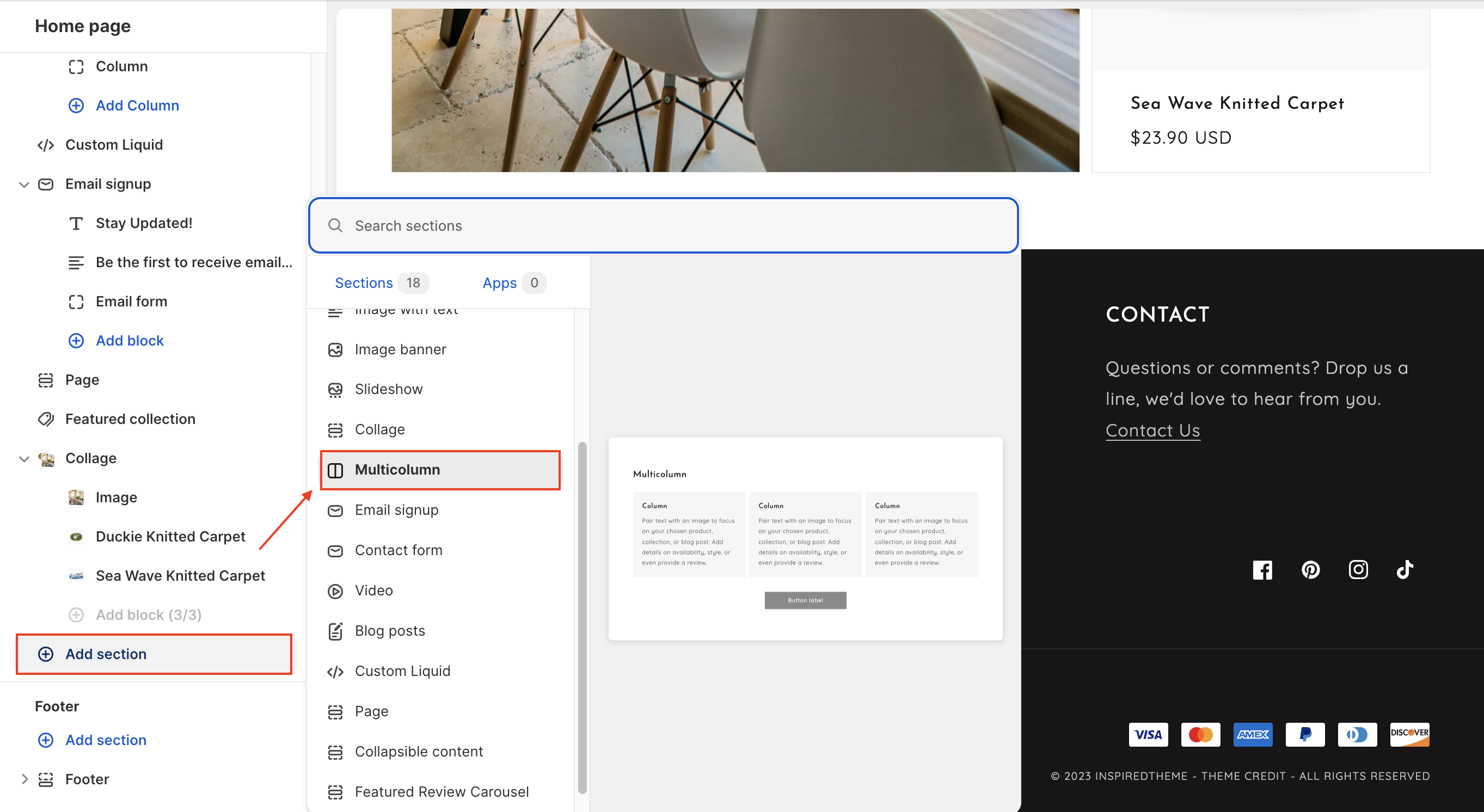
* In the theme editor, click **Add section.**
* Select **Multicolumn.**
* Click **Save.**
{% endhint %}
### **2. Section blocks: Column**
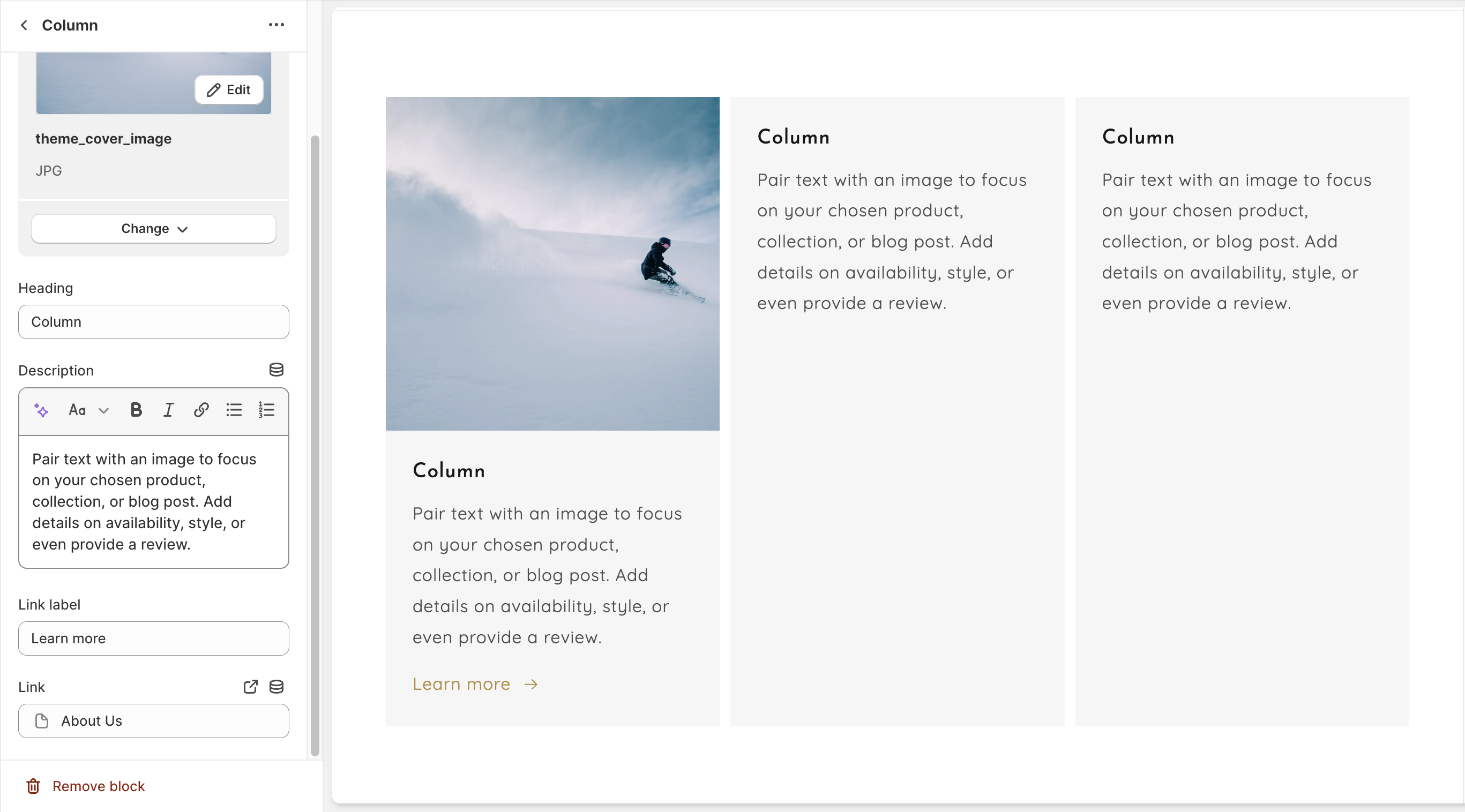
* Click **(+) Add column** to add a new **Column (**Click **Remove block** or the eye icon to delete or hide a block.)
* Under **Image**, click **Select image** to upload an image to display at the top of the column.
* Enter text for the column **Heading.**
* Enter **Description** as the main column content below the **Heading**.
* Fill in **Link label** and paste a URL for the **Link**.
### **3. Multicolumn section settings:**
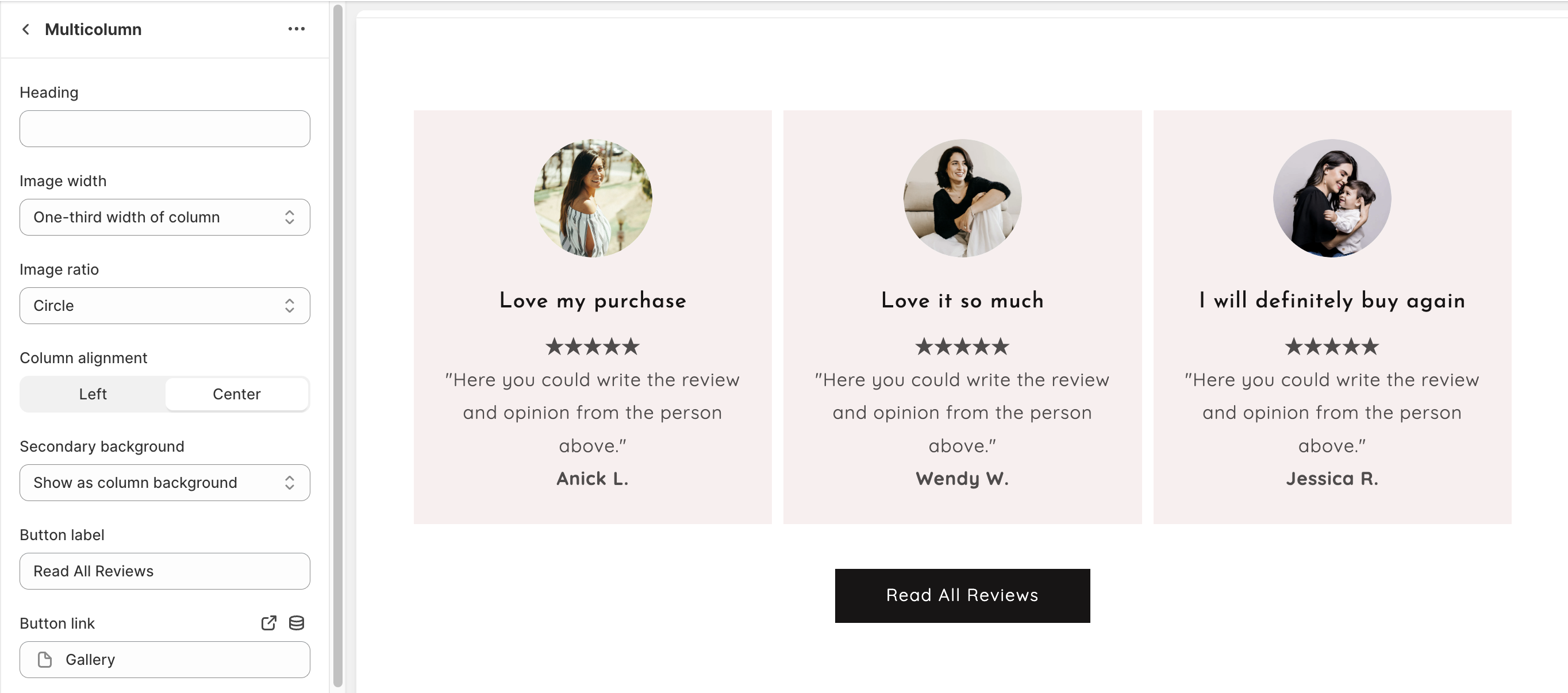
* Click on the **Multicolumn** section to open the section settings.
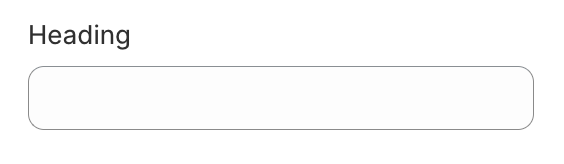
* **Heading:** Change the **Heading** text as a title for your section. Delete the text in this field to remove the heading.
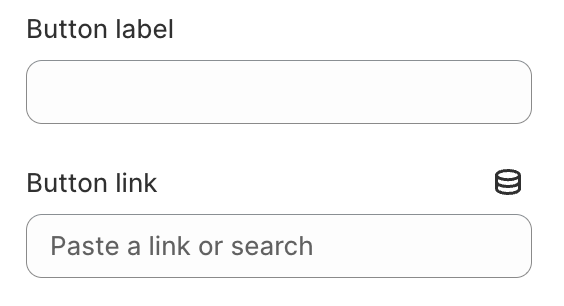
* **Button**: Add a **Button label** and **Button link** to display a call-to-action button underneath the column.
* To make your images a uniform shape and size, select the **Image aspect ratio** to crop your images to **Square**, **Circle**, or **Portrait**. The **Adapt to image** setting will display the original orientation of each image.
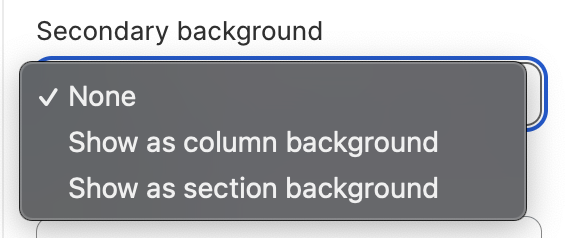
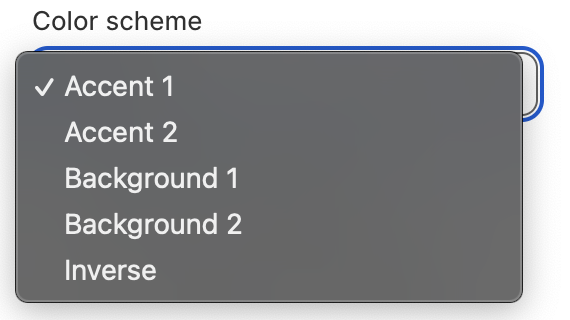
* Select **colors** for the Background: Use the **Color scheme** dropdown to set the color for the multicolumn section. Color only appears when you select to show the **Secondary background**.
* Change the **Image width** to **Full/Half/One-third width of column**:
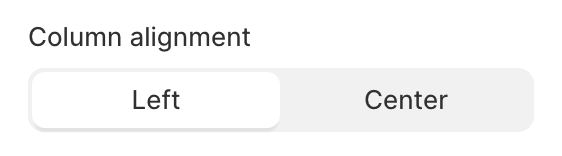
* Select the **Column alignment** options to make the Column content **Left** or **Center** aligned.
---
# Agent Instructions
This documentation is published with GitBook. GitBook is the documentation platform designed so that both humans and AI agents can read, navigate, and reason over technical content effectively. Learn more at gitbook.com.
## Querying This Documentation
If you need additional information that is not directly available in this page, you can query the documentation dynamically by asking a question.
Perform an HTTP GET request on the current page URL with the `ask` query parameter, and the optional `goal` query parameter:
```
GET https://help.inspiredtheme.com/articles/sections/sections-available-in-inspiredtheme/multicolumn.md?ask=&goal=
```
`ask` is the immediate question: it should be specific, self-contained, and written in natural language.
`goal` is optional and describes the broader end goal you are ultimately trying to accomplish on behalf of the user. GitBook uses it to tailor the answer towards what is most useful for that goal.
The response will contain a direct answer to the question and relevant excerpts and sources from the documentation.
Use this mechanism when the answer is not explicitly present in the current page, you need clarification or additional context, or you want to retrieve related documentation sections.