> For the complete documentation index, see [llms.txt](https://help.inspiredtheme.com/articles/llms.txt). Markdown versions of documentation pages are available by appending `.md` to page URLs; this page is available as [Markdown](https://help.inspiredtheme.com/articles/sections/theme-sections/collection-list.md).
# Collection list
Show a grid or carousel of up to 15 collections so shoppers can jump straight to the categories they want.
***
The **Collection list** section shows your chosen collections as image cards, each linking to its collection page. Use it on your home page to help shoppers browse by category, with a grid or a carousel on desktop and a swipeable row on mobile.
### 1. Our guide to set up a Collection list section:
{% hint style="info" %}
**Steps:**
* In the theme editor, click **Add section.**
* Locate **Collection list.**
* Click **Save.**
{% endhint %}
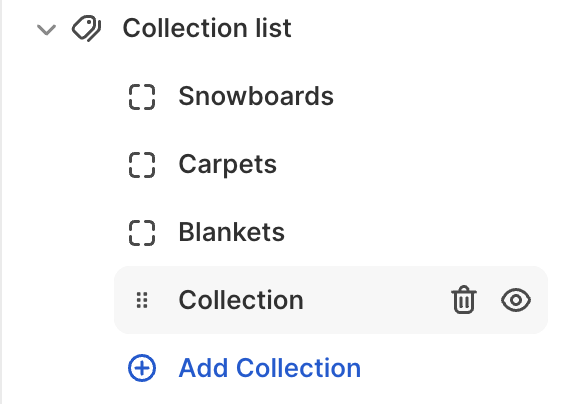
The section is added with three **Collection** blocks. You can add up to 15 **Collection** blocks to a Collection list.
### 2. Section settings
* **Card style:** How the collection title is shown on each card:
* **Left:** The title is left-aligned under the image, with an arrow.
* **Centered:** The title is centered under the image.
* **Overlay button:** The title is shown as a button over the bottom of the image. The button uses the **Cards** corner radius from Theme settings.
* **Section header**
* **Heading:** The title shown above the collections. Leave it blank to hide it.
* **Heading size:** 15–80px.
* **Heading alignment:** Left / Center.
* **General**
* **Number of columns on desktop:** 2–6.
* **Image ratio:** Adapt to image / Portrait / Square / Circle. The card uses the collection's image, which you add by editing the collection in your Shopify admin.
* **Color scheme:** The colors of the cards.
* **Enable carousel on desktop:** Shows the collections in one scrollable row on desktop. Arrow buttons appear when there are more collections than columns.
* **Enable "View all" button if list includes more collections than shown:** Adds a **View all** link to your collections page when your store has more collections than the section shows. With **Heading alignment** set to **Left**, it's a link next to the heading. With **Center**, it's a button below the cards.
* **Show product counts:** Shows the number of products in each collection. With **Overlay button**, the count is shown in brackets next to the title. With the other card styles, it's shown under the title.
* **Mobile layout**
* **Number of columns on mobile:** 1 column / 2 columns.
* **Enable swipe on mobile:** Shows the collections in a swipeable row on mobile. This always uses 1 column.
* **Section padding**
* **Top padding:** 0–100px.
* **Bottom padding:** 0–100px.
### 3. Block settings
**Collection block**
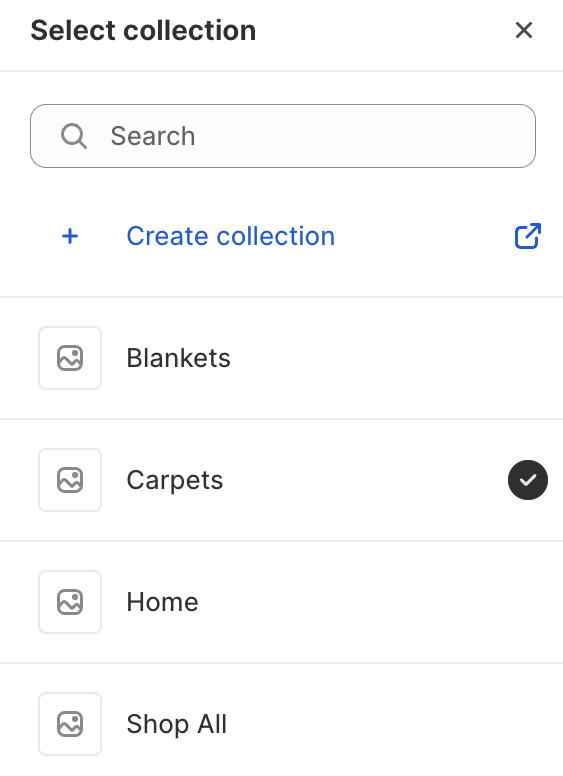
* **Collection:** The collection to show on this card.
### 4. Tips
* Give every collection an image in your Shopify admin so the cards look consistent. Collections without an image show only their title.
* **Circle** works well for category icons or round product shots, especially with **Card style** set to **Centered**.
* A card for an empty collection isn't clickable. Add products to the collection first.
* For more than one row of collections on desktop, add more blocks than the **Number of columns on desktop** and leave **Enable carousel on desktop** off.