> For the complete documentation index, see [llms.txt](https://help.inspiredtheme.com/articles/llms.txt). Markdown versions of documentation pages are available by appending `.md` to page URLs; this page is available as [Markdown](https://help.inspiredtheme.com/articles/sections/theme-sections/custom-liquid.md).
# Custom Liquid
Add your own HTML or Liquid code, or an app snippet, as a section anywhere on a page.
***
The **Custom Liquid** section lets you add HTML or Liquid code to a page without editing your theme files. It's a handy place to paste code snippets from apps or embeds from other services.
### 1. Our guide to set up a Custom Liquid section:
{% hint style="info" %}
**Steps:**
* In the theme editor, click **Add section.**
* Locate **Custom Liquid.**
* Click **Save.**
{% endhint %}
### 2. Section settings
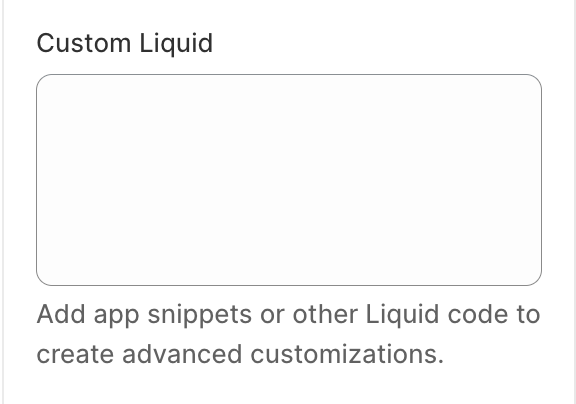
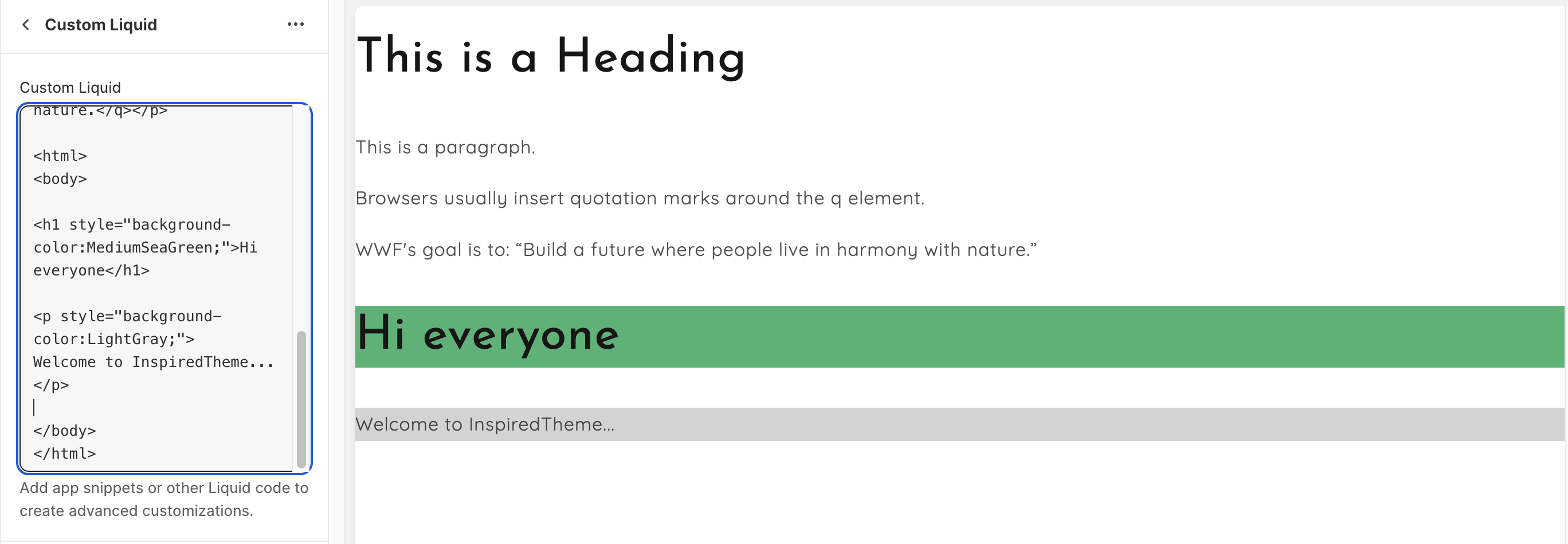
* **Custom Liquid:** Paste your HTML or Liquid code here. It shows on the page exactly where the section is placed.
* **Color scheme:** None / Accent 1 / Accent 2 / Accent 3 / Background 1 / Background 2 / Background 3 / Inverse. **None** leaves the section without its own background, so it blends with the page.
* **Section**
* **Top padding** and **Bottom padding:** 0–100px.
* **Section width:** Page width / Full width. **Page width** keeps your content inside the same width as other sections. **Full width** lets it run to the edges of the screen.
### 3. Tips
* After you install a third-party app, its setup instructions may ask you to edit your theme code. You can often paste the app's snippet into a **Custom Liquid** section instead.
* Code errors can break the section's layout. Test changes in a duplicate of your theme first.
* Use **Full width** for embeds like maps or banners that should span the whole screen.