> For the complete documentation index, see [llms.txt](https://help.inspiredtheme.com/articles/llms.txt). Markdown versions of documentation pages are available by appending `.md` to page URLs; this page is available as [Markdown](https://help.inspiredtheme.com/articles/sections/theme-sections/email-signup.md).
# Email signup
Collect email addresses from visitors so you can send them news and offers. Signups are saved as customers in your Shopify admin.
***
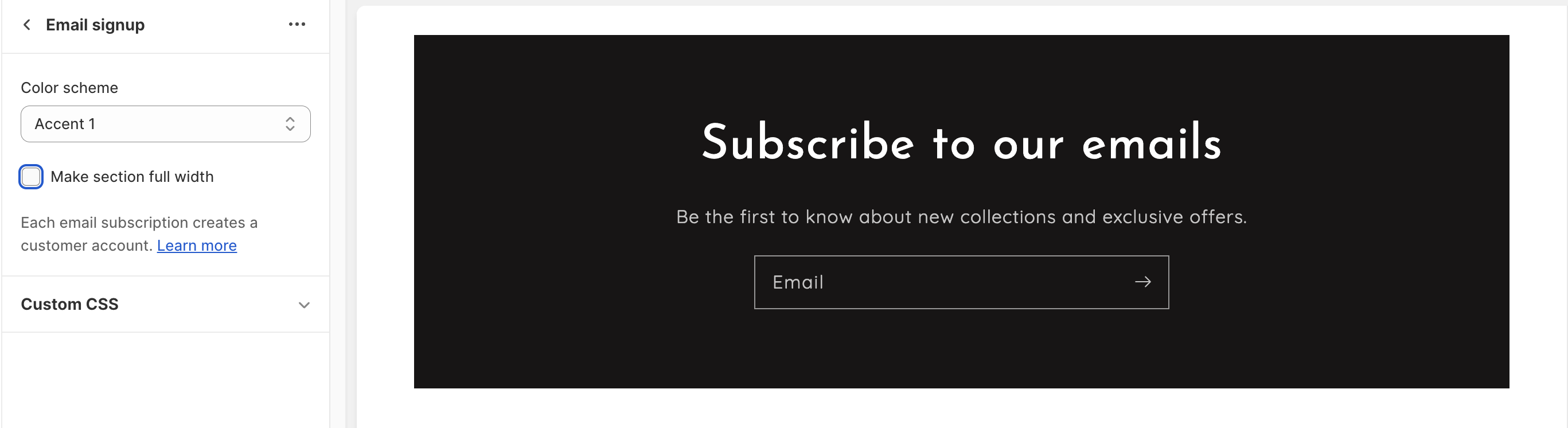
The **Email signup** section adds a heading, a short description and an email form to any page. Each signup creates a customer in your Shopify admin, so you can email them later.
### 1. Our guide to set up an Email signup section:
{% hint style="info" %}
**Steps:**
* In the theme editor, click **Add section.**
* Locate **Email signup.**
* Click **Save.**
{% endhint %}
The section is added with a **Heading**, a **Subheading** and an **Email form** block.
### 2. Section settings
* **Color scheme:** The colors of the signup box.
* **Make section full width:** Stretches the signup box to the edges of the screen. When it's off, the box sits inside the page width.
* **Image settings**
* **Background image:** An image behind the heading and form.
* **Image focal point:** The part of the image that stays visible when it's cropped: Center / Top / Bottom / Left / Right / Top Left / Top Right / Bottom Left / Bottom Right.
* **Image overlay opacity:** Darkens the image so the text is easier to read, 0–100%.
* **Corner radius**
* **Email form:** Rounds the email field and its button, 0–40px.
* **Background:** Rounds the signup box, 0–40px.
* **Section padding**
* **Top padding** and **Bottom padding:** Space inside the signup box, above and below the content, 0–300px.
### 3. Block settings
**Heading block**
* **Heading:** The title of the section.
* **Heading size:** 15–80px.
**Subheading block**
* **Description:** A short line under the heading, for example what subscribers will get.
**Email form block**
This block has no settings. It shows the email field and the subscribe button.
You can also add app blocks from email marketing apps that support them.
### 4. Where do Email signup submissions go?
Signups are saved in your Shopify admin under **Customers**. [Learn more](/articles/faqs/where-do-submission-of-email-signup-forms-go.md)
### 5. Tips
* Say what shoppers get for signing up, such as early access or a first-order discount, in the **Subheading** block.
* When you use a **Background image**, raise **Image overlay opacity** until the heading and form are easy to read.
* Match the **Email form** corner radius to your buttons elsewhere in the theme for a consistent look.