> For the complete documentation index, see [llms.txt](https://help.inspiredtheme.com/articles/llms.txt). Markdown versions of documentation pages are available by appending `.md` to page URLs; this page is available as [Markdown](https://help.inspiredtheme.com/articles/sections/theme-sections/featured-product.md).
# Featured product
Show one product, with its media, price, variant picker and buy buttons, in its own section on any page.
***
The **Featured product** section puts a single product front and center, with its media gallery and the buying options customers need to add it to their cart without leaving the page. Use it to promote a best seller, a new launch or a seasonal hero product on your home page or a landing page.
### 1. Our guide to set up a Featured product section:
{% hint style="info" %}
**Steps:**
* In the theme editor, click **Add section.**
* Locate **Featured product.**
* In **Product**, select the product to feature.
* Click **Save.**
{% endhint %}
The section is added with **Text**, **Title**, **Text**, **Price**, **Variant picker**, **Quantity selector**, **Buy buttons** and **Share** blocks. You can reorder, hide, remove or add blocks. A **View full details** link to the product page is shown under the blocks.
### 2. Section settings
* **Product:** The product to feature.
* **Image ratio:** The shape of the main product media: Adapt to image / Square / Portrait / Landscape.
* **Section header**
* **Heading:** The title shown above the product. Leave it blank to hide it.
* **Heading size:** 15–80px.
* **Description:** Text shown under the heading.
* **Media**
* **Hide other variants’ media after selecting a variant:** When a customer selects a variant, media that belongs to other variants is hidden.
* **Enable video looping:** Product videos play on a loop.
* **Corner radius**
* **Corner radius:** Rounds the corners of the featured media and thumbnails, 0–40px. Thumbnails are rounded up to a maximum of 8px.
* **Section padding**
* **Top padding:** 0–100px.
* **Bottom padding:** 0–100px.
### 3. Block settings
**Text block**
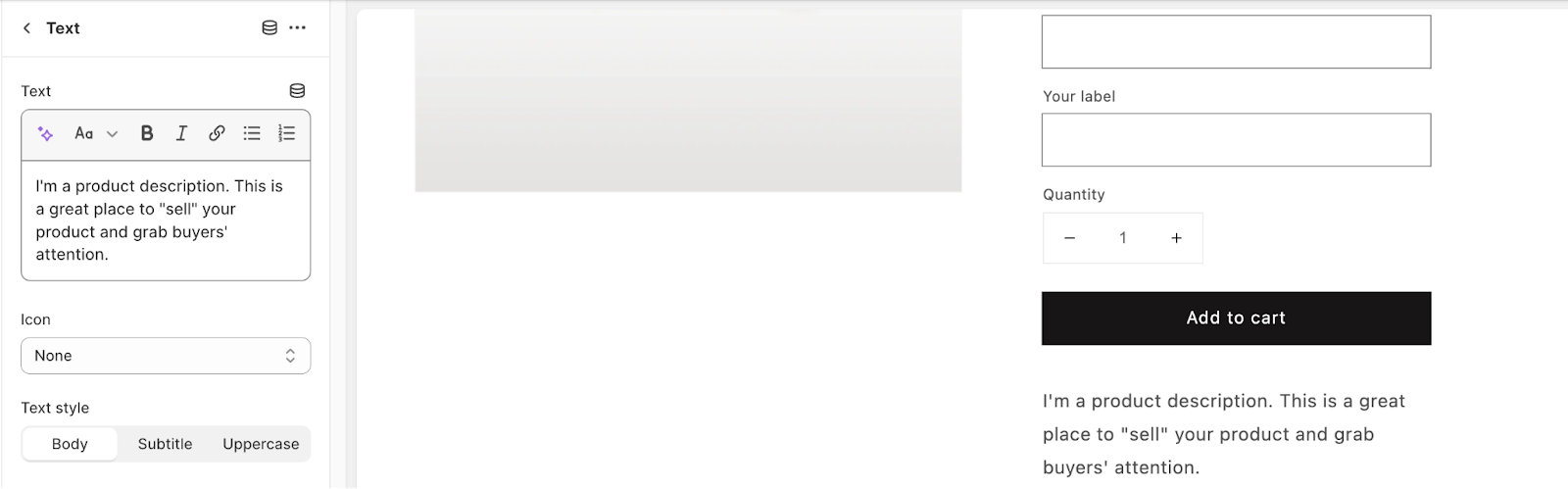
Shows a short line of text, with an optional icon. See [Text](/articles/product-pages/product-information/text.md).
* **Text style:** Body / Subtitle / Uppercase.
* **Text:** The text to show.
* **Icon:** An icon shown before the text. Choose **None** to hide it.
* **Color**
* **Use custom color:** Turn on to pick your own color for the text and icon.
* **Text:** The custom text and icon color.
**Title block**
Shows the product title. You can add one per section.
* **Font size scale on desktop:** 50–200%.
* **Font size scale on mobile:** 50–200%.
**Price block**
Shows the product price. You can add one per section.
* **Font size scale for price:** The size of the sale or current price, 50–200%.
* **Font size scale for compare-at price:** The size of the original price, 50–200%.
* **Show shipping policy notice:** Shows the taxes-included message and a link to your shipping policy, if your store has them set up.
* **Badges**
* **Show sale badge**, **Show sold out badge** and **Show custom badge:** Show these badges next to the price. See [Badges](/articles/theme-settings/inspiredtheme-settings-intro/badges.md).
* **Colors**
* **Use custom colors:** Turn on to pick your own price colors.
* **Price color** and **Compare-at price color:** The custom colors.
**Quantity selector block**
Adds a quantity field with minus and plus buttons. This block has no settings. You can add one per section.
**Variant picker block**
Lets customers choose a variant, such as a size or color. You can add one per section.
* **Type:** Dropdown / Button.
* **Make block full width:** Stretches the dropdowns to the full width of the column. Requires **Type** to be **Dropdown**.
**Buy buttons block**
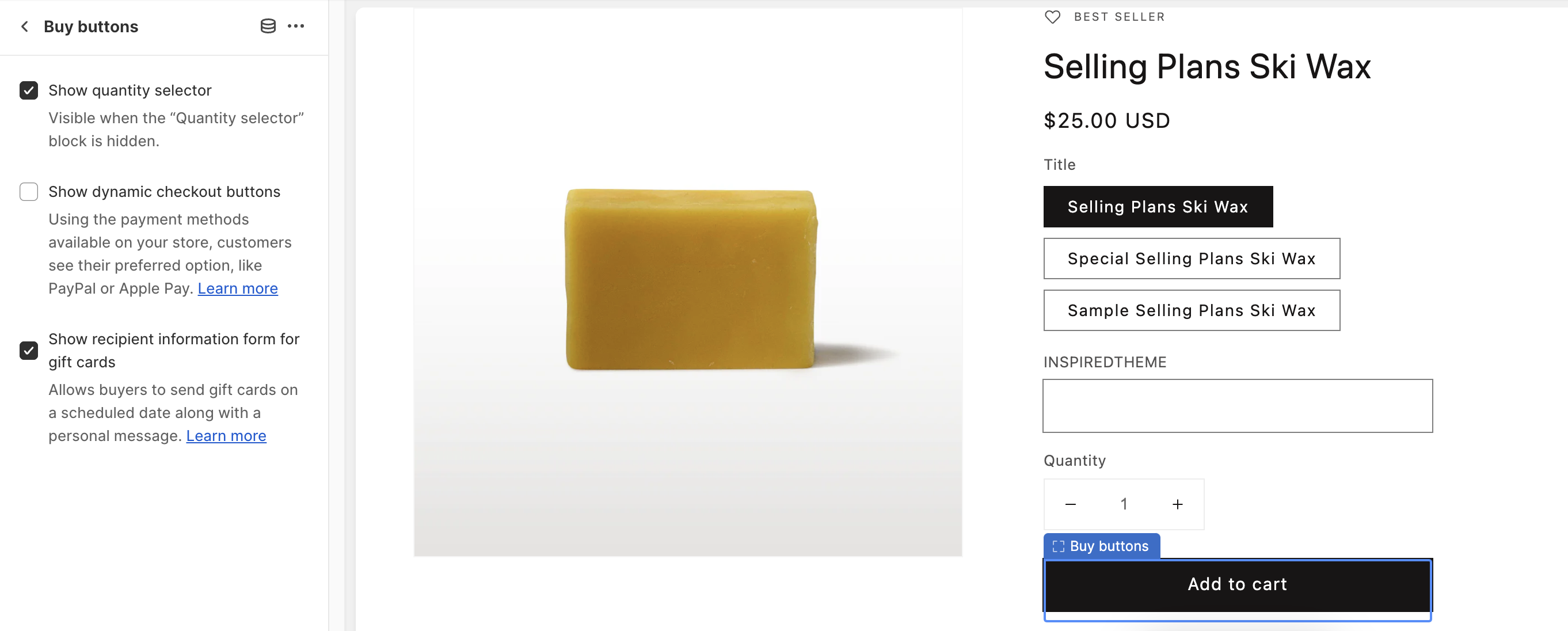
Shows the **Add to cart** button and, if you choose, the dynamic checkout buttons. You can add one per section.
* **Show quantity selector:** Adds a quantity dropdown next to the **Add to cart** button. It only shows when the section has no **Quantity selector** block, or that block is hidden.
* **Show dynamic checkout buttons:** Shows a direct-to-checkout button, such as PayPal or Apple Pay, based on the payment methods available on your store.
* **Show recipient information form for gift cards:** On gift card products, lets buyers send the gift card on a scheduled date with a personal message.
* **Add to cart button**
* **Color scheme:** Accent 1 / Accent 2 / Background 1 / Background 2 / Inverse.
* **Use outline button style:** Shows the button with an outline instead of a solid fill.
* **Pre-order settings**
* **Enable pre-order mode:** Products tagged `pre-order` show a pre-order button instead of **Add to cart**. See [Pre-order](/articles/product-pages/pre-order.md).
* **Pre-order button text:** The text on the pre-order button.
**Share block**
Adds a share button. On devices that support it, the button opens the device's share menu. Otherwise, customers can copy the product link. You can add one per section.
* **Text:** The label on the share button.
**Custom liquid block**
* **Custom liquid:** Add app snippets or other Liquid code. See [Custom liquid](/articles/product-pages/product-information/custom-liquid.md).
**Product rating block**
Shows the product's star rating and review count. To display a rating, install a product rating app. This block has no settings. See [Product rating](/articles/product-pages/product-information/product-rating.md).
**Line item property block**
Collects customization information, such as a name for engraving, when the item is added to the cart. See [Line item property](/articles/product-pages/product-information/line-item-property.md).
* **Type:** Text / Long text / Checkbox / Radio buttons.
* **Label:** The field's label.
* **Required:** Customers must fill in the field to add the item to the cart. With **Checkbox**, the box must be checked.
* **Checkbox**
* **Checked value** and **Uncheck value:** The values saved to the order when the box is checked or unchecked. Requires **Type** to be **Checkbox**.
* **Radio buttons**
* **Options:** Your options, separated by commas, for example `Option 1, Option 2, Option 3`. Requires **Type** to be **Radio buttons**.
**Inventory status block**
Shows a live stock message for the selected variant. You can add one per section. See [Inventory status](/articles/product-pages/product-information/inventory-status.md).
* **Enable low inventory threshold:** When on, the message only shows when stock is at or below the threshold. When off, it shows whenever the variant is in stock.
* **Low inventory threshold:** 1–50.
* **Inventory message:** The stock message. Use `||amount||` to show the current stock level.
* **Show icon:** Shows an icon before the message.
* **Enable pulse:** Adds a subtle pulse animation to the icon.
* **Show progress bar:** Shows a bar under the message.
* **Colors**
* **Progress bar:** The color of the progress bar.
You can also add app blocks from apps you've installed.
### 4. Tips
* Use the **Text** blocks above and below the **Title** for a short tagline or a key selling point, such as free shipping.
* If you use a **Quantity selector** block, leave **Show quantity selector** in the **Buy buttons** block off to avoid two quantity fields.
* Set **Image ratio** to **Square** or **Portrait** when your product photos have different shapes, so the section keeps a tidy layout.