> For the complete documentation index, see [llms.txt](https://help.inspiredtheme.com/articles/llms.txt). Markdown versions of documentation pages are available by appending `.md` to page URLs; this page is available as [Markdown](https://help.inspiredtheme.com/articles/sections/theme-sections/image-with-text.md).
# Media with text
Pair an image or video with a heading, text and button to promote a product, collection or story.
***
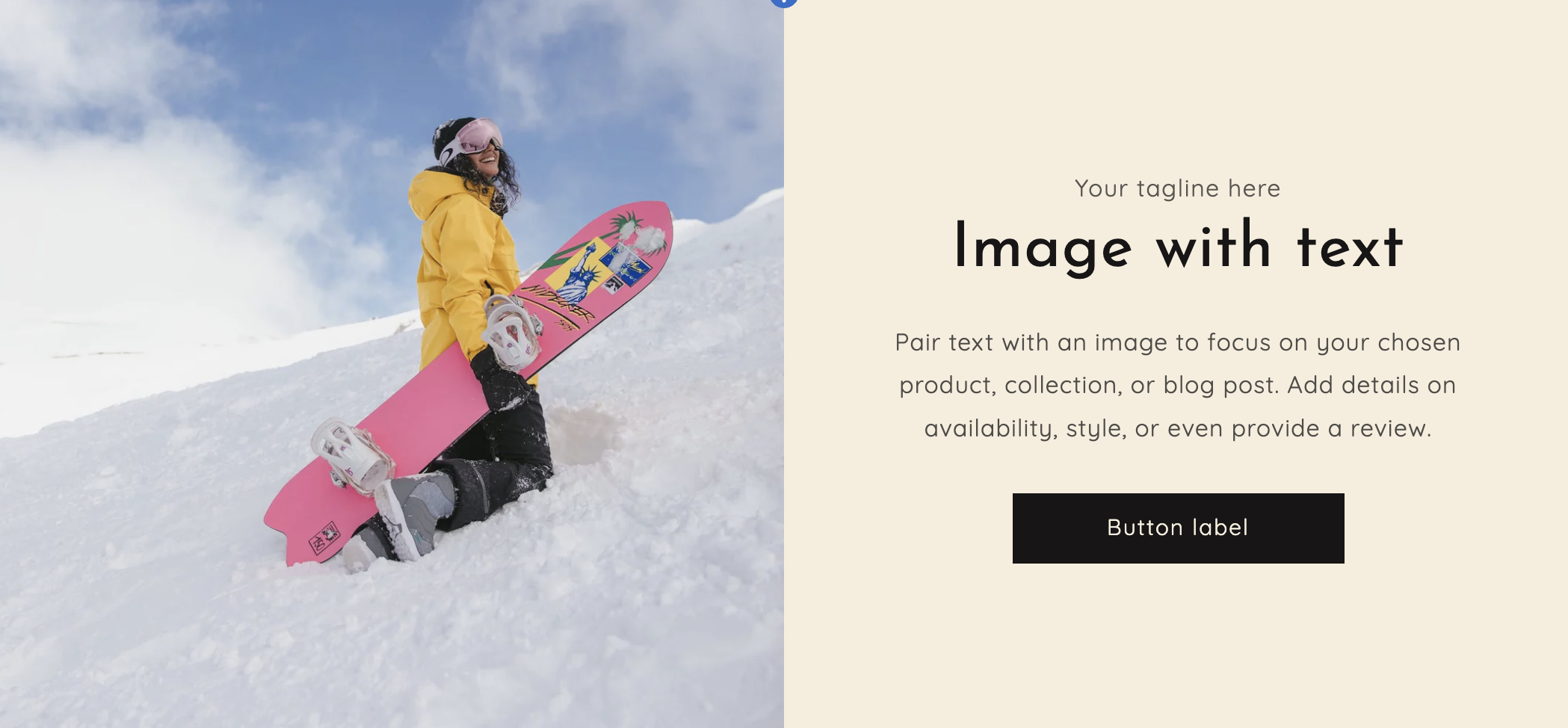
The **Media with text** section shows an image or a video next to your content. It was previously called **Image with text**. Use it to promote a product or collection, introduce your brand or explain a feature, with a heading, text, buttons, icons and collapsible tabs beside the media.
Media with text with Desktop content alignment set to Center
### 1. Our guide to set up a Media with text section:
{% hint style="info" %}
**Steps:**
* In the theme editor, click **Add section.**
* Locate **Media with text.**
* Click **Save.**
{% endhint %}
The section is added with a **Heading**, a **Text** and a **Button** block. You can reorder, remove or add blocks.
### 2. Section settings
* **Color scheme:** The colors of the section.
* **Image:** The image shown beside the content.
* **Video:** A video uploaded to your Shopify files. It plays automatically, muted and on a loop. If you set both an image and a video, the video is shown.
* **Media overlay opacity:** Darkens the media with a black overlay, 0–100%.
* **Desktop media height:** Adapt to content height / 250px / 350px / 450px / 550px / 650px / 750px / 850px. **Adapt to content height** makes the media as tall as the content beside it.
* **Adapt section height to media size:** The media keeps its own proportions. This overrides **Desktop media height**.
* **Layout settings**
* **Desktop media width:** The width of the media column on desktop, 30–70%. The content takes the rest.
* **Desktop image placement:** Left / Right. Which side the media sits on.
* **Desktop content position:** Top / Middle / Bottom. Where the content sits vertically beside the media.
* **Desktop content alignment:** Left / Center / Right.
* **Content layout:**
* **No overlap:** The media and content sit side by side.
* **Overlap:** The content box overlaps the edge of the media. On mobile, it overlaps the bottom of the media.
* **Make section full width:** Stretches the section to the full width of the screen.
* **Show divider:** Adds a divider line between the media and the content.
* **Text:** Optional text shown on top of the media. Leave these blank to show nothing on the media.
* **Heading:** The heading shown on the media.
* **Heading size:** 15–80px.
* **Description:** Text shown under the heading.
* **Button label** and **Button link:** Adds a button on the media. Leave the label blank to hide it.
* **Use outline button style:** Shows the button with an outline instead of a solid fill.
* **Content position:** Where this text sits on the media: Top, Middle or Bottom, combined with Left, Center or Right.
* **Mobile layout**
* **Mobile media height:** 150px / 250px / 350px / 450px / 550px / 650px / 750px.
* **Mobile content alignment:** Left / Center / Right.
* **Corner radius**
* **Corner radius:** Rounds the corners of the media and the content area, 0–40px.
* **Section padding**
* **Top padding:** 0–100px.
* **Bottom padding:** 0–100px.
### 3. Block settings
Blocks are shown in the content area beside the media.
**Heading block**
You can add one per section.
* **Heading:** The heading text.
* **Heading size:** H1 / H2 / H3 / H4 / H5 / H6.
* **Width:** The maximum width of the heading, 200–800px.
**Caption block**
A short tagline. You can add one per section.
* **Text:** The caption text.
* **Text style:** Subtitle / Uppercase.
* **Text size:** Small / Medium / Large.
**Text block**
You can add one per section.
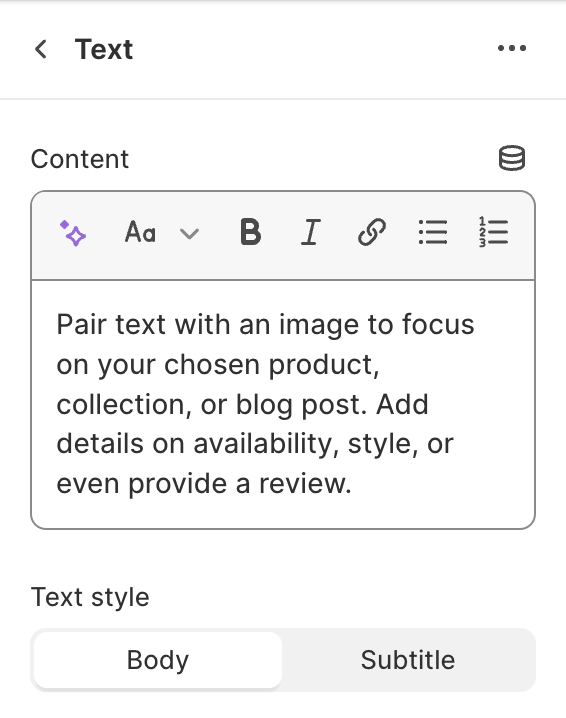
* **Content:** The paragraph text.
* **Text style:** Body / Subtitle.
* **Width:** The maximum width of the text, 200–800px.
**Button block**
You can add one per section.
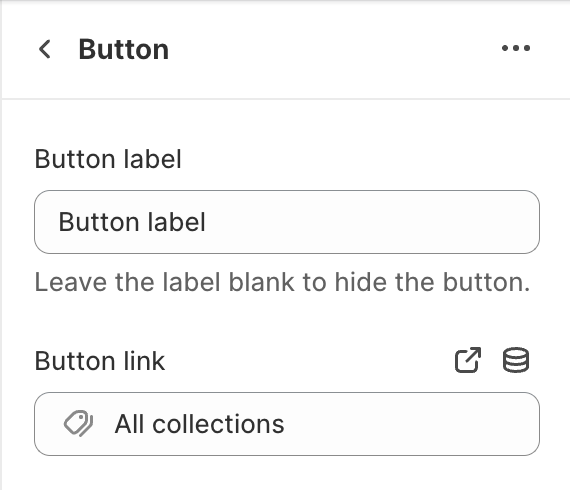
* **Button label:** Leave the label blank to hide the button.
* **Button link:** Where the button goes.
* **Use outline button style:** Shows the button with an outline instead of a solid fill.
**Image block**
A small image inside the content area, such as a logo, badge or signature.
* **Image:** The image to show.
* **Width:** 10–100%.
* **Link:** Optional. Makes the image clickable.
**Text with icon block**
* **Text:** A short line of text, such as a key feature or service.
* **Text style:** Body / Subtitle / Uppercase.
* **Icon:** The icon shown before the text. Choose **None** to hide it.
**Collapsible tab block**
Adds an expandable tab for extra details. See [Collapsible tab](/articles/product-pages/product-information/collapsible-tab.md).
* **Heading:** The tab's title. Include a heading that explains the content.
* **Icon:** An icon shown before the heading. Choose **None** to hide it.
* **Tab content:** The text shown when the tab is opened.
* **Tab content from page:** Shows the content of one of your store's pages instead. When a page is assigned, it overrides **Tab content**.
### 4. Tips
* Use the **Text** settings in the section to add a short headline on the media, and the blocks for the main content beside it.
* Raise **Media overlay opacity** when you place text on a bright image or video, so the text stays readable.
* Stack two Media with text sections and switch **Desktop image placement** between **Left** and **Right** for a zigzag layout.