> For the complete documentation index, see [llms.txt](https://help.inspiredtheme.com/articles/llms.txt). Markdown versions of documentation pages are available by appending `.md` to page URLs; this page is available as [Markdown](https://help.inspiredtheme.com/articles/sections/theme-sections/rich-text.md).
# Rich text
Share a short message with a heading, text, image and button. Use it to introduce your brand, make an announcement or welcome shoppers.
***
The **Rich text** section shows a heading, text, small images and a button, stacked in one column. Use it to describe your brand, share news or add a short call to action between other sections.
### 1. Our guide to set up a Rich text section:
{% hint style="info" %}
**Steps:**
* In the theme editor, click **Add section.**
* Locate **Rich text.**
* Click **Save.**
{% endhint %}
The section is added with a **Heading**, a **Text** and a **Button** block. Click **Add block** to add more, or drag them to reorder.
### 2. Section settings
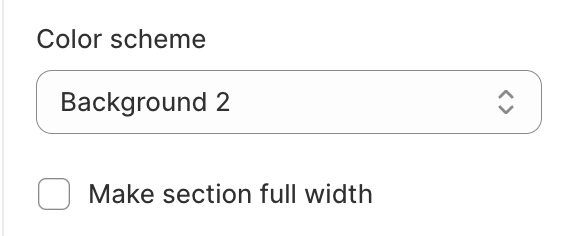
* **Color scheme:** The colors of the section's background and text.
* **Desktop content alignment:** Left / Center / Right.
* **Mobile content alignment:** Left / Center / Right. Applies to text on phones.
* **Make section full width:** Stretches the section to the edges of the screen.
* **Corner radius**
* **Corner radius:** Rounds the corners of the section's colored area, 0–40px.
* **Inner padding**
* **Top padding** and **Bottom padding:** Space inside the colored area, above and below the content, 0–50px.
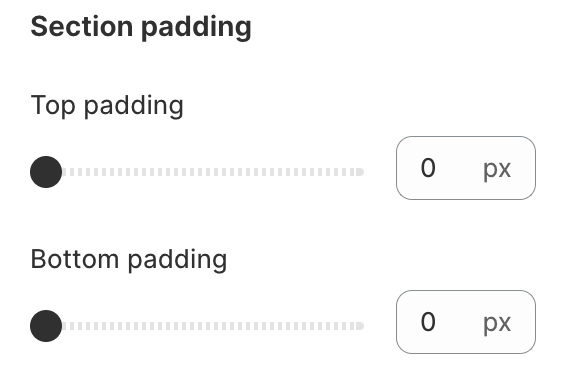
* **Section padding**
* **Top padding** and **Bottom padding:** Space outside the section, 0–100px.
### 3. Block settings
**Heading block**
* **Heading:** The title text.
* **Heading size:** H1 / H2 / H3 / H4 / H5 / H6. H1 is the largest.
* **Width:** The maximum width of the heading, 200–800px.
**Text block**
* **Description:** Your text. You can add bold, italic and links.
* **Width:** The maximum width of the text, 200–800px.
**Image block**
* **Image:** A small image, such as a logo, signature or badge.
* **Link:** Makes the image clickable. Leave it blank for a plain image.
* **Width:** 30–500px. The image follows **Desktop content alignment**.
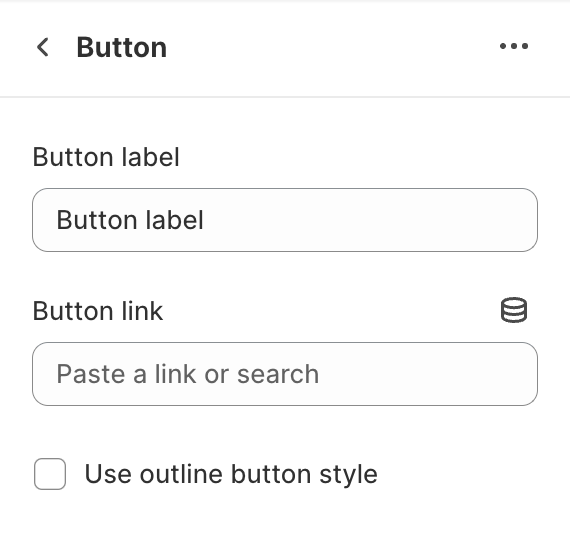
**Button block** (one per section)
* **Button label** and **Button link:** The button text and where it goes.
* **Use outline button style:** Shows an outlined button instead of a solid one.
### 4. Tips
* Choose a color scheme that's different from the sections around it, then add **Corner radius** and **Inner padding** to turn the section into a highlighted box.
* Keep the heading and text **Width** around 600px so lines stay easy to read on large screens.
* Use the **Image block** for a signature or a small logo under your brand story.
* Want your message next to columns of scrolling product cards? Try [Rich text: Scrolling cards](/articles/sections/theme-sections/rich-text-scroll-cards.md).