> For the complete documentation index, see [llms.txt](https://help.inspiredtheme.com/articles/llms.txt). Markdown versions of documentation pages are available by appending `.md` to page URLs; this page is available as [Markdown](https://help.inspiredtheme.com/articles/sections/theme-sections/video-banner.md).
# Video banner
Show an auto-playing background video, without sound, with a heading, text and buttons on top of it.
***
The **Video banner** section plays a video in the background, muted and on a loop, with your message on top of it. Use it to open your home page with movement, show your product in action or set the mood for a campaign. You can set a separate video for mobile and darken the video so text stays readable.
{% hint style="info" %}
To add a video that customers play with sound, use the [Video](/articles/sections/theme-sections/video.md) section instead.
{% endhint %}
### 1. Our guide to set up a Video banner section:
{% hint style="info" %}
**Steps:**
* In the theme editor, click **Add section.**
* Locate **Video banner.**
* Click **Save.**
{% endhint %}
The section is added with a **Heading**, a **Text** and a **Buttons** block. You can reorder, remove or add blocks.
### 2. Section settings
* **Layout:** Full width / Compact. **Full width** stretches the banner to the edges of the screen. **Compact** keeps it within the page width.
* **Video:** A video uploaded to your Shopify files. It plays automatically, muted and on a loop.
* **Mobile video:** An optional video for mobile. If you leave it blank, mobile shows the **Video**.
* **Video overlay opacity:** Darkens the video so text stands out, 0–100%.
* **Desktop section height:** Small / Medium / Large / Custom.
* **Custom height:** 250–850px. Only applies when **Desktop section height** is set to **Custom**.
* **Adapt section height to video size:** The section height matches your video's shape. This overrides **Desktop section height** and **Mobile section height**.
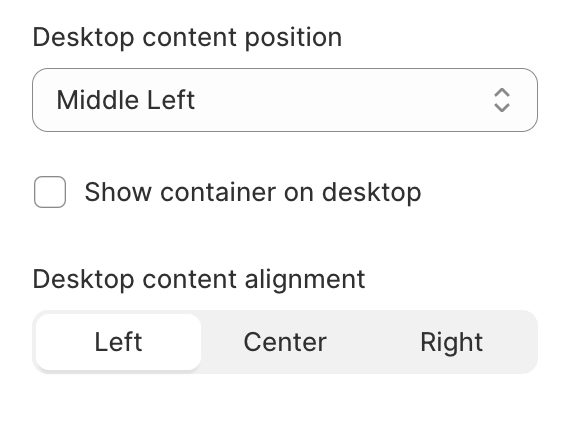
* **Desktop content position:** Where the content sits on desktop: Top, Middle or Bottom, combined with Left, Center or Right.
* **Show container on desktop:** Shows the content in a box on desktop.
* **Desktop content alignment:** Left / Center / Right.
* **Colors**
* **Heading:** The color of the headings.
* **Text:** The color of the text and caption.
* **Button label**, **Button background** and **Button outline:** The colors of the buttons. **Button outline** applies to buttons with the outline style.
* **Container background:** The color of the box. Visible when **Show container on desktop** is on.
* **Mobile layout**
* **Mobile section height:** 150px / 250px / 350px / 450px / 550px / 650px / 750px.
* **Mobile content position:** Top / Middle / Bottom. This doesn't apply when **Adapt section height to video size** is on.
* **Mobile content alignment:** Left / Center / Right.
* **Corner radius**
* **Corner radius:** Rounds the corners of the banner, 0–40px.
### 3. Block settings
**Heading block**
* **Heading:** The heading text.
* **Heading size:** H1 / H2 / H3 / H4 / H5 / H6.
* **Width:** The maximum width of the heading on desktop, 200–800px.
**Text block**
* **Text:** The text to show.
* **Text style:** Body / Subtitle / Uppercase.
* **Width:** The maximum width of the text on desktop, 200–800px.
**Buttons block**
Adds up to two buttons. You can add one per section.
* **First button label** and **Second button label:** Leave a label blank to hide that button.
* **First button link** and **Second button link:** Where each button goes.
* **Use outline style:** Shows the button with an outline instead of a solid fill. Each button has its own setting.
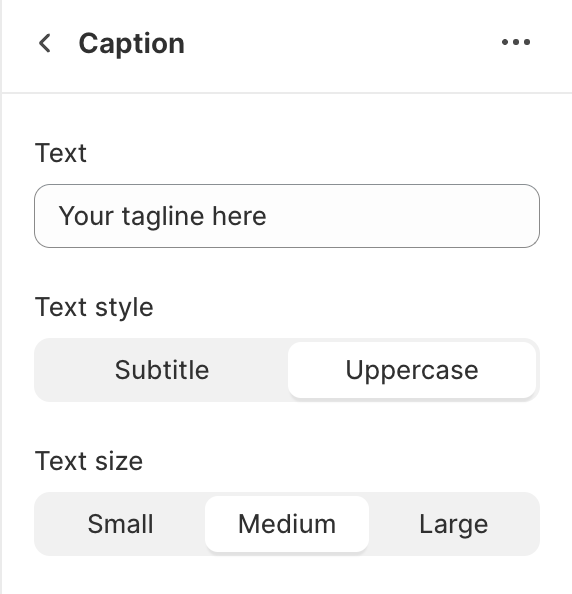
**Caption block**
A short tagline. You can add one per section.
* **Text:** The caption text.
* **Text style:** Subtitle / Uppercase.
* **Text size:** Small / Medium / Large.
### 4. Tips
* Keep background videos short and small in file size so the page loads quickly.
* Add a **Mobile video** in portrait format so the banner fills phone screens well.
* If your text is hard to read over the video, raise **Video overlay opacity** or turn on **Show container on desktop**.